Clean Your TV: Set Up the Viral Android TV Debloat Project
Meet CleanYourTV, previously tv-vibehack. Learn its Android TV setup, model checks, backup and restore workflow, with genuine launcher images and project links.
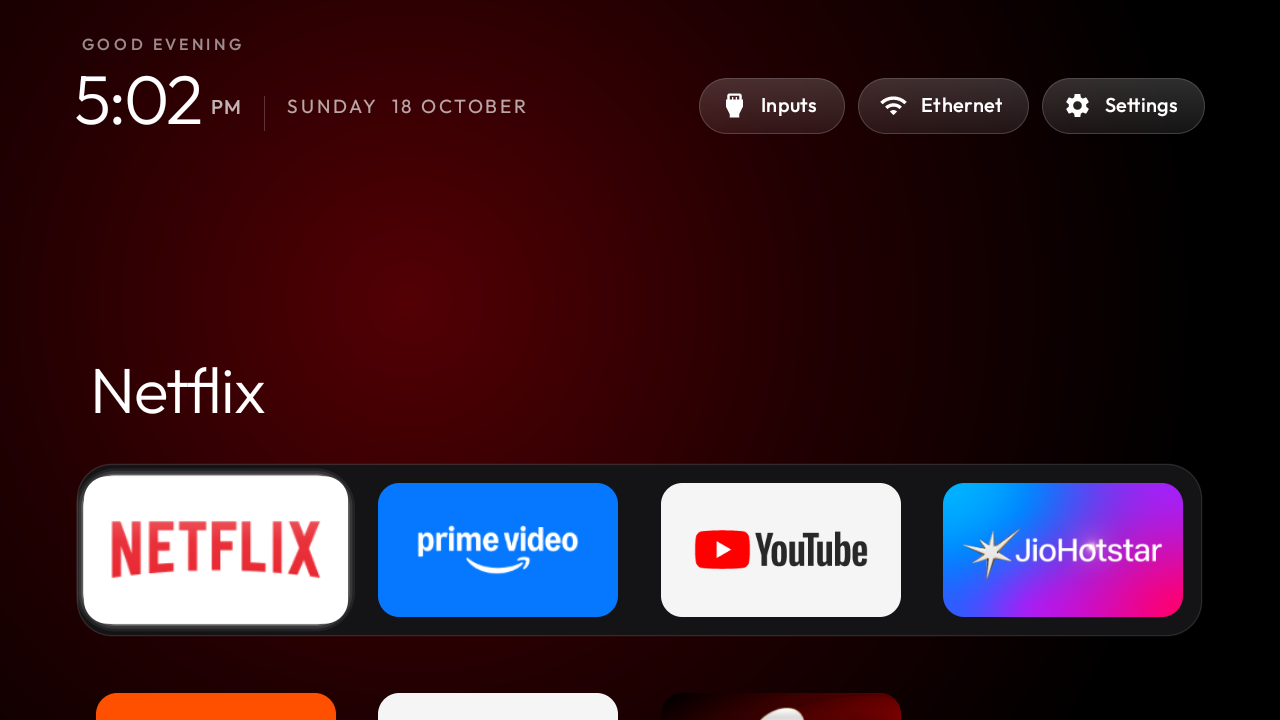
If your TV takes too long to get from the Home button to the app you actually want, a cleaner launcher sounds pretty appealing. The recent project behind many of those before-and-after posts is Clean Your TV, maintained by Gathin and its contributors.
According to the maintainer's README, the project followed a TV-cleanup post on 17 October 2026 and was called tv-vibehack until 19 October. Its official website is cleanyour.tv. This guide uses the documentation checked on 27 October 2026; support can change as the project develops.
Genuine CleanYourTV launcher screenshot from the official repository. Copyright © 2026 Gathin, MIT licence. App names and logos belong to their respective owners.
What changes, and what stays on your TV?
The project uses Android's debugging tools to disable selected packages and install a small replacement Home screen. Its documented approach uses pm disable-user, rather than uninstalling the packages or replacing Android with a different operating system.
The launcher puts your apps in a simpler dock and grid. The cleanup targets unwanted manufacturer packages, advertising components and telemetry candidates. The exact list depends on your model, firmware and the features you want to keep. There is no universal list that should be applied blindly to every television.
A lighter Home screen may feel more responsive, but this does not add physical RAM or upgrade the processor. We have not measured performance on your TV, and the project does not establish that every device will get the same improvement. Removing Home-screen promotions also does not remove every advert inside streaming apps.
Check your platform first
- Android TV and Google TV: the main targets for both the cleanup and replacement launcher.
- Fire TV: the README describes more limited debloating support. Do not expect the same Home-screen replacement; some devices refuse the required package operations.
- Samsung Tizen, LG webOS and Roku: this Android workflow does not run on them. The project has a separate non-Android privacy guide.
Even within Android TV, check the device examples and known issues. A matching brand name is not enough; model and firmware matter.
Step 1: prepare the TV and computer
Use a computer and TV on the same trusted local network. On many TVs, open Settings, find About, and press the Build entry seven times to reveal Developer options. Enable USB debugging and, where provided, network or ADB debugging. Menu names vary by manufacturer.
Keep the TV remote nearby. The TV needs to approve the computer's debugging request. Google's ADB documentation explains the connection and authorisation model. Devices using Wireless debugging with pairing codes can need extra steps; follow the project's connection troubleshooting instead of assuming port 5555 is already available.
Step 2: clone the actual project
With Git installed, run:
git clone https://github.com/Gathin23/cleanyourtv.git
cd cleanyourtv
Open this folder in your coding assistant. Read the repository's PROMPT.md, then give it to the assistant with your exact TV model. The documented workflow supports assistants such as Claude Code, Codex and Gemini CLI; an assistant may have its own subscription or usage costs.
Working in the cloned repository matters. The project's own scripts include backup and Home-screen recovery behaviour. An assistant inventing a separate batch of package-removal commands would miss that context.
Step 3: agree on the cleanup before applying it
Tell the assistant which apps you use and whether you need Chromecast, voice control, Live TV, HDMI inputs and system updates. Ask it to identify the TV, inspect the package list, and show the proposed changes before disabling anything.
Use this repository's tools. Start with a read-only inspection of my exact TV model and firmware. Keep my streaming apps, casting and system updates. Explain every package you propose to disable. Save the backup and restore instructions, then ask me to approve the plan before applying it.
The README says the disable scripts record the previous package states and Home component under ~/.cleanyourtv/. Keep that record and the exact debloat list used. A plan that has no clear restore path is not ready to apply.
Prefer a manual first check?
The current README provides Python tools for network ADB. On macOS or Linux, the following prepares the environment and probes the device without running the cleanup. Replace the IP address with your TV's local IP:
python3 -m venv tools/venv
tools/venv/bin/pip install -r tools/requirements.txt
export TV_HOST=192.168.1.50
tools/venv/bin/python -I tools/tv.py --probe
If the probe cannot connect, solve that first. The manual guide also covers PowerShell and launcher installation. Building the launcher can require Android build tooling; use the current instructions for your operating system.
After you have reviewed a list for your exact model, the documented apply-and-undo pattern looks like this. The model path below is a placeholder. Replace it with the real, reviewed list; do not run it unchanged.
tools/disable.sh "examples/YOUR-MODEL/debloat.txt"
tools/restore.sh "examples/YOUR-MODEL/debloat.txt"
These commands assume the TV_HOST environment from the previous step is still set. The repository's restore section explains the optional stock-launcher fallback argument for Google TV. Use the same saved record and list when undoing changes.
Test normal TV use before calling it finished
Check Home, streaming playback, volume, HDMI switching, sleep and wake, casting and any voice feature you kept. Test with the normal remote. If a feature stops working, restore the affected changes before trying a larger cleanup. Firmware updates can also re-enable packages, so keep notes about what you changed.
When everything works, disable debugging again. Do not expose the TV's ADB connection to the internet. This is a local device-maintenance workflow, and the project includes a tool for checking that the network ADB port is closed.
Only have an Android phone? The README links a community-built Clean Your TV app. That is an alternative setup path, with its own instructions and restore flow.
Official links
- Repository and current setup instructions
- Coding-assistant prompt
- Troubleshooting and connection help
- Restore guide
For a supported TV, the appeal is simple: a calmer Home screen and more control over what runs on the device you own. Start with the right model, keep the recovery record, and make changes you understand.